
What is a browser extension? A plain guide for Chrome users
What browser extensions are, how they work, how to install, pin and remove them in Chrome, how to judge if one is safe, and how the MeetETA extension converts times on any page.
Published · Updated
The short answer
A browser extension is a small add-on that gives your browser a new skill. Chrome on its own shows web pages. With extensions, it can also block pop-ups, fill in passwords, check grammar, or turn a time written in someone else’s zone into your own.
Most extensions show up as an icon to the right of the address bar. Some only act when you click that icon. Others quietly help on the page you are reading, for example by showing a small card when you select a piece of text.
Why people use them
The main benefit is staying where you are. Without an extension, a quick task often means opening a new tab, finding a tool, pasting something in and coming back. An extension brings that tool to the page in front of you, so a five-step detour becomes a click or a text selection.
That matters most for tasks you repeat many times a day. Small savings add up, and you keep your focus on the email or document you were working on.
How an extension works
Under the hood, an extension is a bundle of ordinary web files: HTML, CSS and JavaScript, plus a manifest file that lists what it is and what it is allowed to do. Chrome reads the manifest and only grants the abilities listed there.
- Toolbar popup. The small window that opens when you click the icon.
- Content script. Code that runs inside web pages so the extension can react to what you do there, such as selecting text.
- Background worker. Code that handles events such as a right-click menu item.
- Permissions. The list of things the extension may access, which Chrome shows you before you install.
Install, pin and manage extensions in Chrome
- Open the extension’s page on the Chrome Web Store and click Add to Chrome.
- Read the permissions Chrome lists, then confirm with Add extension.
- Click the puzzle piece icon next to the address bar, then the pin next to the extension so its icon stays visible.
- Refresh any tabs that were already open, so the extension can work on them.
To manage what you have, type chrome://extensions in the address bar. From there you can turn an extension off with its switch, open Details to review its permissions and site access, or click Remove to uninstall it.
How to tell if an extension is safe
Extensions can see a lot, so a quick check before installing is worth it.
- Install from the official store. For Chrome, that is the Chrome Web Store. Avoid files sent by strangers or download sites.
- Check who made it. Look for a named developer with a real website and a privacy policy.
- Read the permissions. They should match the job. A time converter has no reason to ask for your browsing history or passwords.
- Look at recent updates and reviews. An extension that is maintained is more likely to keep up with browser security changes.
- Prune regularly. Remove anything you no longer use. Fewer extensions means less to trust.
Example: the MeetETA extension for Chrome
Time zones are a good fit for an extension because times turn up everywhere: in emails, chat, event pages and shared documents. The MeetETA extension lets you read them in your own zone without leaving the page.
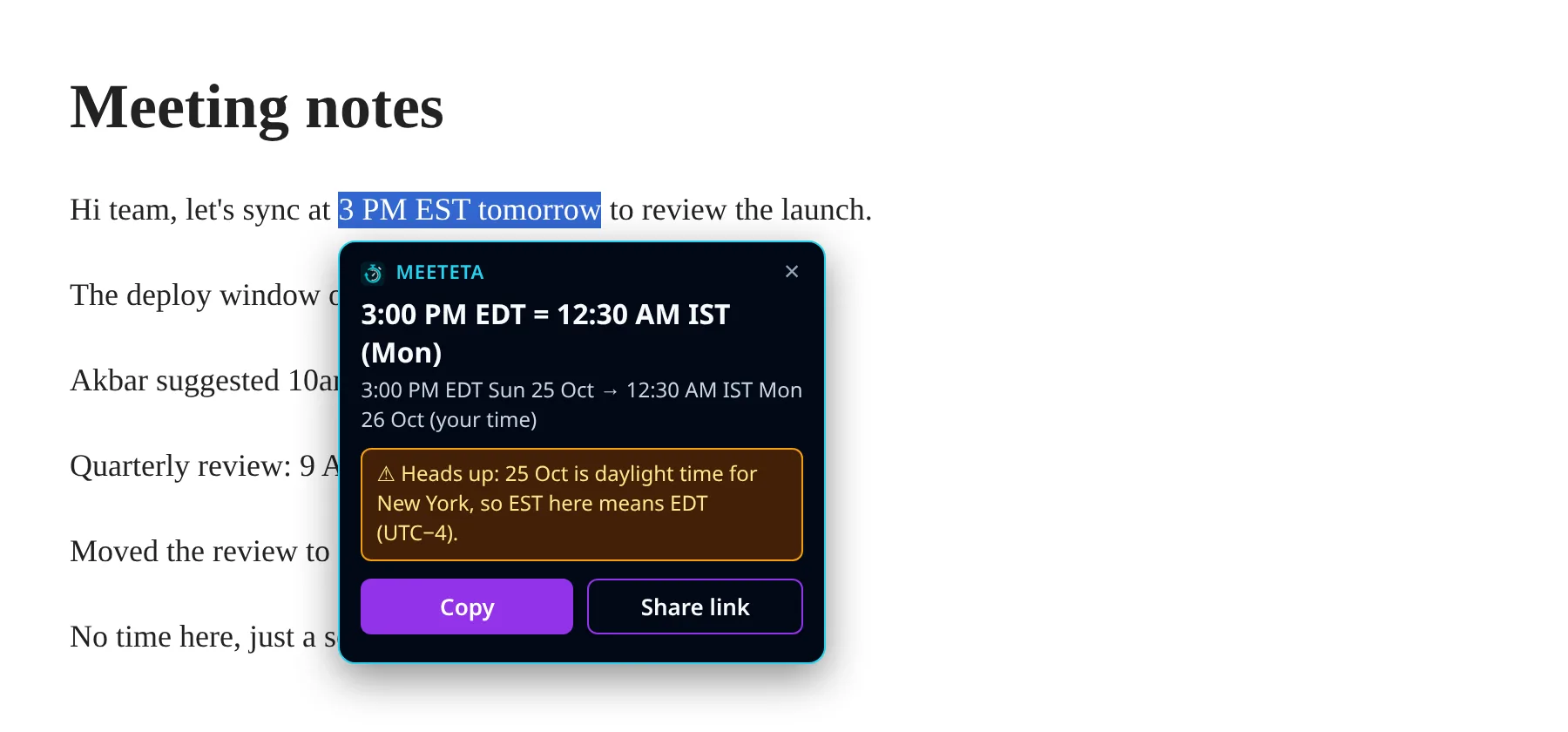
- Select to convert. Highlight a time such as “3 PM EST” or “10am PT Thursday” and a card appears with your local time and day.
- Daylight time warnings. If someone writes EST on a date when New York is on EDT, the card points it out.
- Destinations. Text such as “9am London to Tokyo” shows the time in the named place, with your own time underneath.
- Copy and Share link. Copy the converted time, or share a meeteta.com link that shows each viewer the time in their own zone.
- Right-click. Choose Convert with MeetETA from the context menu on a selection.
- Toolbar popup. Type a time to convert it, and glance at a world clock of up to four cities.
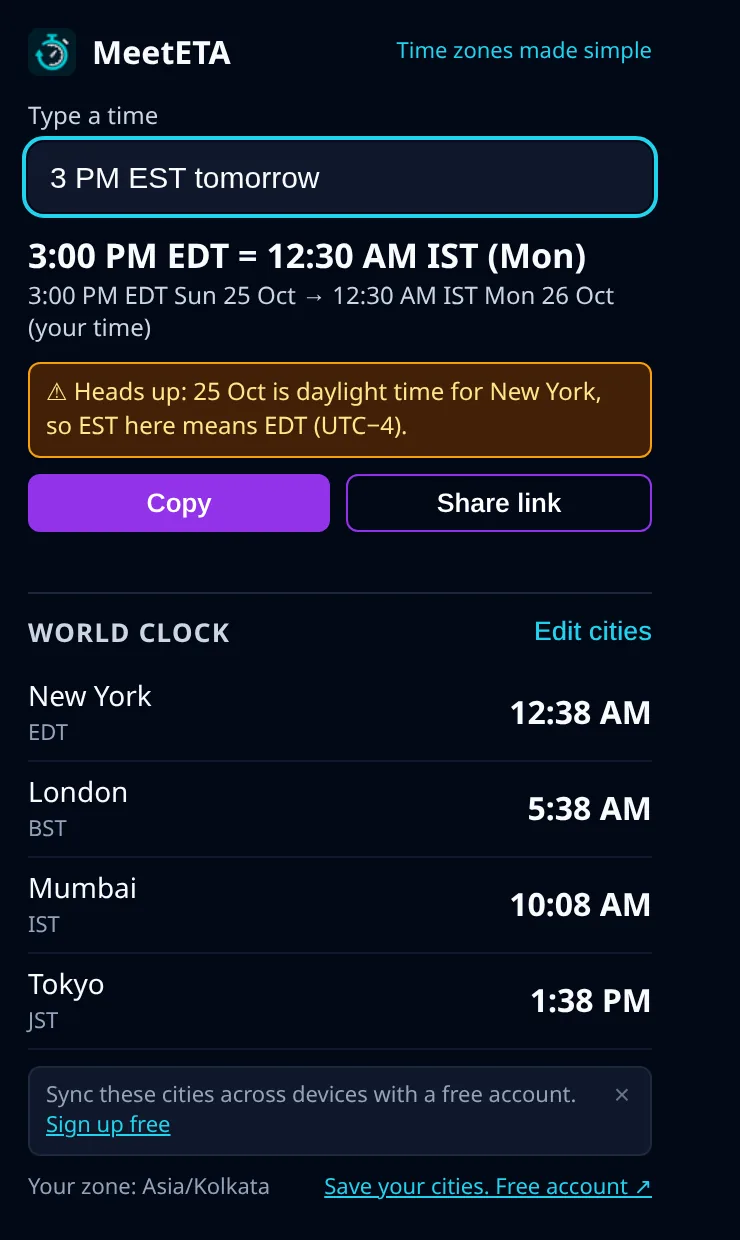
On permissions, it asks only for what these features need: access to pages so the card can appear when you select text, a right-click menu item, and storage for your world clock cities. It collects no data, runs no analytics and makes no network requests.
Or read more on the MeetETA for Chrome page.
Keep your cities with you
Create a free MeetETA account to save your cities and keep them in sync across your devices, so your world clock is ready wherever you sign in.
Common questions
Is a browser extension the same as an app?
Not quite. An extension runs inside your browser and adds to the pages and toolbar you already use. It cannot run on its own outside the browser.
Do extensions slow Chrome down?
Each one uses some memory, and a few heavy ones can add up. Removing extensions you no longer use is the simplest fix.
Does the MeetETA extension need an account?
No. The extension works without signing in. A free MeetETA account lets you save your cities and keep them in sync across devices.
Does the MeetETA extension send the text I select anywhere?
No. The conversion happens in the page. The extension has no analytics and makes no network requests.