
MeetETA for Microsoft Edge: convert time zones on any page
How to install the MeetETA extension from Microsoft Edge Add-ons, pin and manage it in Edge, and use it to see times on any page in your own time zone.
Published · Updated
The short answer
MeetETA is now on Microsoft Edge Add-ons. Select a time like “3 PM EST” in Outlook on the web, Gmail or any other page, and a small card shows that moment in your own time zone, right next to the text. It is free and needs no account.
Install, pin and manage it in Edge
- Open the MeetETA listing on Microsoft Edge Add-ons and click Get.
- Read the permissions Edge lists, then confirm with Add extension.
- Click the puzzle piece icon next to the address bar, then the eye icon next to MeetETA so its icon stays on the toolbar.
- Refresh any tabs that were already open, so the extension can work on them.
To manage it later, type edge://extensions in the address bar. From there you can turn it off with its switch, open Details to review its permissions and site access, or click Remove to uninstall it.
What it does
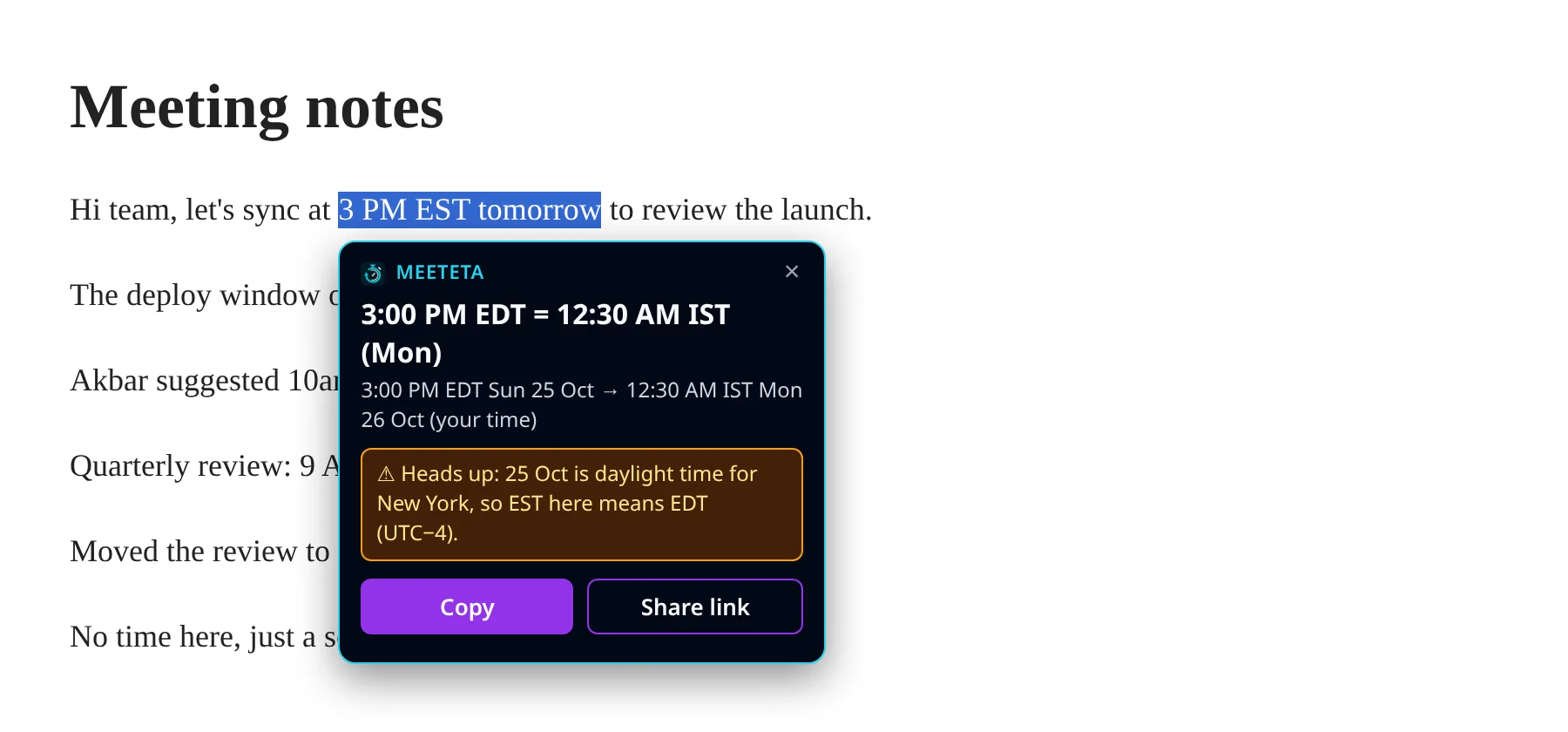
- Select to convert. Highlight a time such as “3 PM EST” or “10am PT Thursday” and a card appears with your local time and day.
- Daylight time warnings. If someone writes EST on a date when New York is on EDT, the card points it out.
- Destinations. Text such as “9am London to Tokyo” shows the time in the named place, with your own time underneath.
- Copy and Share link. Copy the converted time, or share a meeteta.com link that shows each viewer the time in their own zone.
- Right-click. Choose Convert with MeetETA from the context menu on a selection.
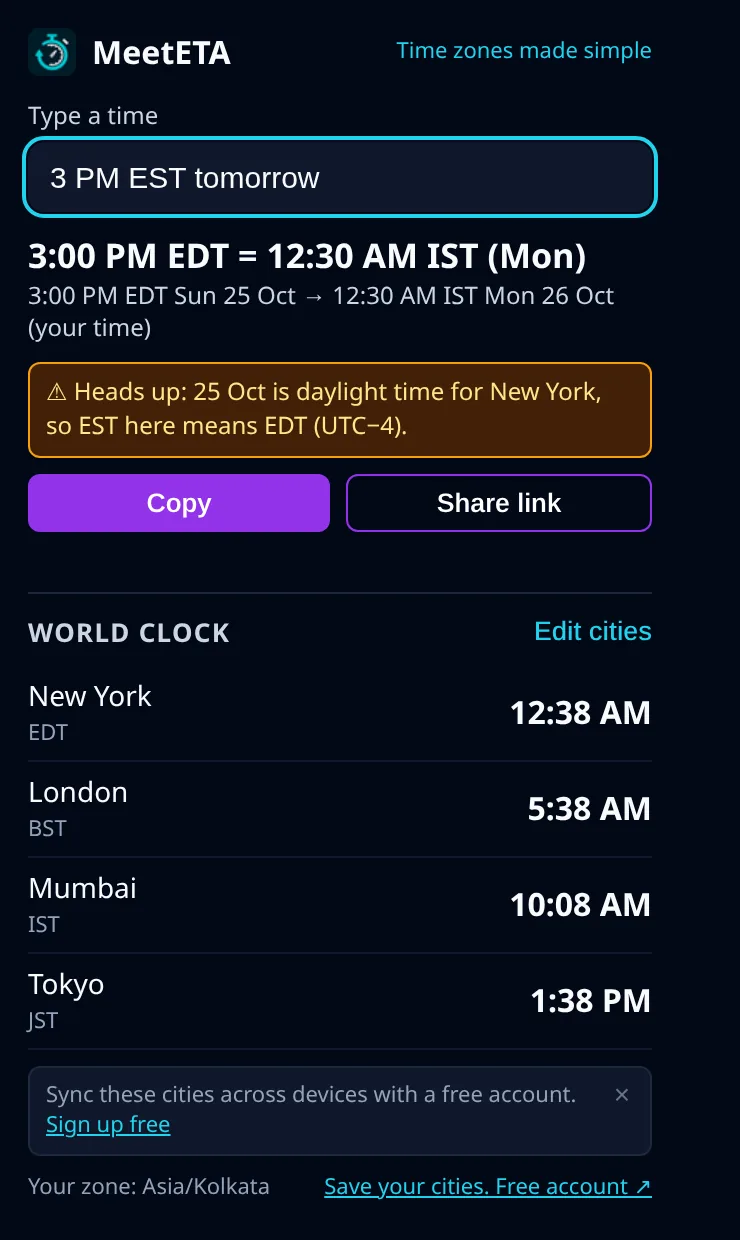
- Toolbar popup. Type a time to convert it, and glance at a world clock of up to four cities.
Privacy and permissions
It asks only for what these features need: access to pages so the card can appear when you select text, a right-click menu item, and storage for your world clock cities. Conversions happen on your device. It collects no data, runs no analytics and makes no network requests.
New to extensions? Our plain guide to browser extensions explains how they work and how to tell if one is safe.
Keep your cities with you
Create a free MeetETA account to save your cities and keep them in sync across your devices, so your world clock is ready wherever you sign in.
Common questions
Is the Edge extension the same as the Chrome one?
Yes. It is the same MeetETA extension with the same features, published on Microsoft Edge Add-ons so you can install it from the Edge store.
Does the MeetETA extension need an account?
No. The extension works without signing in. A free MeetETA account lets you save your cities and keep them in sync across devices.
Does the MeetETA extension send the text I select anywhere?
No. The conversion happens in the page. The extension has no analytics and makes no network requests.
Does it work in Edge on my phone?
No. Edge extensions run on desktop: Windows, macOS and Linux.