
Choosing scheduling software as a tutor or coach (2026)
Choose scheduling software by how you teach, not by the longest feature list. A solo tutor or coach with students abroad needs times shown in each student’s zone, clear availability rules, buffers, reminders, easy rescheduling and a simple way to get paid. A tutoring business with several teachers needs student records, invoicing and shared calendars, which is a different kind of tool. The table below compares eight options on the things that matter for lessons, with prices checked on each official pricing page.
Published · Updated
What a tutor or coach actually needs
Most scheduling tools were built for sales calls and client meetings. Lessons have a few needs of their own: students are often in another country, many are children with a parent arranging the time, the same slot repeats every week, and payment usually happens per lesson or per package. Before you compare tools, check these:
- Times shown in the student’s zone. The student should see open times on their own clock, worked out for the lesson date, with a picker to correct a wrong guess. It helps if your time is visible as well, so you both know you mean the same moment. Our guide to scheduling online lessons across time zones covers the details.
- Availability rules. Weekly teaching hours, minimum notice so nobody books a lesson for 20 minutes from now, a limit on how far ahead students can book, and a daily cap so you are not teaching eight hours straight.
- Buffers. A gap before or after each lesson for notes, a short break, or a lesson that runs over.
- Booking types. A short free trial, a regular lesson and a longer exam practice session usually need different lengths, and sometimes different hours.
- Getting paid. Some tools take payment with a card checkout during booking. Others let you share your payment link automatically, so the student pays you through the service you already use. A checkout is tidier; a link avoids an extra platform fee and keeps your existing setup.
- Reminders. Automatic reminders, ideally one the day before and one shortly before the lesson, reduce no-shows. Text message reminders reach some students better than email, especially teenagers.
- Rescheduling and cancelling. A link in the confirmation email that lets the student move or cancel a lesson within your rules saves a lot of back and forth.
- Embedding. If you have a website, a booking calendar you can place on your own page keeps students on your site.
- Calendar and video. The tool should check the calendar you actually use, Google, Outlook or Apple, and add the meeting link you teach on.
How to choose in five steps
- Decide whether you need a booking tool or a tutoring business tool. A booking tool gives students a page to pick a time. A tutoring business tool adds student records, attendance, lesson notes, invoicing and payroll for several teachers. If you teach alone and invoice by hand, the first kind is usually enough.
- Open your own booking page as a student would. Use a phone, set a different time zone, and check that the times make sense and the zone is easy to change.
- Check how payment works. Card checkout at booking, an invoice afterwards, or a link to your existing payment page. Look for platform fees on top of the card processor’s fees.
- Check what the free plan really includes. Free plans often limit booking types, calendars or reminders, and some tools have no free plan at all, only a trial.
- Add up the real monthly cost. Per-seat prices grow with each teacher, per-lesson fees grow with each student, and yearly billing often lowers the headline number.
Comparison of scheduling tools for tutors and coaches
Prices checked on each official pricing page, in US dollars before tax. Vendors change plans often, so open the linked page before you buy. Where a detail was not shown on an official page, the table says “Check site”.
| Tool | Price (USD) | Free plan | Times in the student’s zone | Payment at booking | Video links | Calendar sync | Reminders | Groups and teams | Student records and invoicing |
|---|---|---|---|---|---|---|---|---|---|
| MeetETA | Free time link. Booking: $5.99/mo, or $79 once ($99 after the January launch) | Yes, but the free link shows your hours and does not take bookings | Yes, with your own time under each slot and a note when clocks change that week | No checkout. Your own payment link is shown on the confirmation and in the emails, and you are paid directly | Google Meet link created for each booking, or your own Zoom, Teams or other link | Google Calendar only | Email: confirmation, then 24 hours and 1 hour before. No text messages | No. One host, one student per booking | No |
| Calendly | Free. Standard $10 per seat/mo billed yearly, $12 monthly | Yes, one event type and one calendar | Yes, detected automatically, with a zone picker | Stripe and PayPal at booking on Standard, not on Free | Zoom, Google Meet, Microsoft Teams and others on every plan | Google, Outlook and Office 365: 1 on Free, 6 on paid plans | Automated reminders on Standard, not on Free | Group event types on Standard. Round robin on Teams ($16 per seat/mo billed yearly) | Contact profiles with notes on Free. Invoices and prepaid packages on Standard |
| Cal.com | Free for 1 user. Teams $12 per user/mo | Yes, unlimited links and calendars for 1 user | Yes, detected automatically, with a zone picker | Stripe and PayPal at booking on Free | Cal Video built in, plus Zoom, Google Meet and Teams links | Unlimited calendars on Free | Email and text notifications on Free | Team scheduling, round robin and recurring events on Teams | Not listed on the pricing page |
| Acuity Scheduling | No free plan. Starter $16/mo billed yearly, $20 monthly. 7-day trial | No | Yes, automatic time zone conversion for clients | Stripe, Square, PayPal or Venmo on every plan, including deposits | Google Meet, Zoom and GoToMeeting on every plan | Check site | Email on every plan. Text reminders from Standard ($27/mo billed yearly) | 1 staff calendar on Starter, 6 on Standard, 36 on Premium | Client intake forms on every plan. Packages and memberships from Standard. Invoicing: check site |
| TidyCal | Free. $29 one-time Individual plan (sold on AppSumo). Pro $12/mo, or $99/yr | Yes, unlimited bookings and booking types | Yes, detected automatically, with a zone picker | Stripe and PayPal on Free, with a 1% platform fee except on Pro | Automatic Zoom, Google Meet and Teams links on paid plans | Google, Office 365 and Apple: 1 on Free, 10 on one-time plans, unlimited on Pro | Custom reminder emails on paid plans. Text reminders (US and Canada) on the $79 Agency plan and Pro | Group bookings on Free. Round robin and team pages on Agency and Pro | Recurring and package bookings on Free. Invoicing not listed |
| Setmore | Free for up to 4 users. Pro from $5 per user/mo billed yearly | Yes, unlimited appointments | Yes, on by default, with a zone picker | Square, Stripe and PayPal on Free. Deposits on Pro | Video appointments on Pro | Two-way calendar sync on Pro only | One email reminder on Free. Text messages and a second reminder on Pro | Group classes and a team booking page on Free | Customer profiles, history and notes on Free. Invoicing not listed |
| TutorBird | No free plan. $16.95/mo for one tutor, plus $4.95 per extra tutor. 30-day trial | No | Yes, students and tutors can each have their own time zone | Online payments through Stripe and PayPal | Zoom and Lessonspace integrations | Two-way sync with Google Calendar and Outlook | Email and text lesson reminders included | Multiple tutors with their own schedules. Group lessons through the student portal | Yes: student profiles, attendance, lesson notes, automatic invoicing |
| Teachworks | No free plan. Starter $16.49/mo plus $0.35 per student lesson. 21-day trial | No | Yes, with the User Time Zones add-on, included on all plans | Stripe, at booking or from invoices | Links for Zoom, Google Meet, Skype and others in the calendar and reminders | Two-way Google Calendar sync, plus calendar feeds for other apps | Email lesson reminders. Text reminders with usage fees | Unlimited teachers, group lessons and open classes | Yes: lesson records, invoicing, packages and teacher payroll |
A few patterns stand out. Cal.com, TidyCal and Setmore take bookings and payments on their free plans, which is hard to beat if your budget is zero. Calendly’s free plan is fine for one kind of lesson but leaves out reminders and payments. Acuity Scheduling, TutorBird and Teachworks have no free plan, and the last two are built around student records and invoicing rather than a single booking link. MeetETA has the narrowest feature set here: its focus is showing both clocks clearly, with your time under each slot and a note in the weeks when clocks change, and it offers a one-time price, but it connects only to Google Calendar, sends email reminders only, and does not run a checkout, group classes or invoices.
Sources for each row
- Calendly: Pricing, Time zones
- Cal.com: Pricing, Free account features
- Acuity Scheduling: Pricing and plan comparison
- TidyCal: Pricing and plan comparison, Time zones
- Setmore: Pricing and plan comparison, Local time zone
- TutorBird: Pricing and features, Student time zones
- Teachworks: Pricing, User Time Zones add-on, Integrations
Which kind of tool fits your situation
- You are just starting and want to spend nothing. Pick a free plan that takes bookings and reminders. Cal.com, TidyCal and Setmore all take bookings on their free plans; check which reminders each one includes for free.
- You want students to pay when they book. Choose a tool with a built-in checkout through Stripe or PayPal, such as Acuity Scheduling, Calendly Standard, Cal.com or TidyCal, and check the platform fee on your plan.
- You already get paid through PayPal, Wise, Stripe or a bank link. A tool that shares your payment link automatically in the confirmation and reminder emails may be enough, and you avoid moving your payments.
- Most of your students live in other countries. Put time zone handling first. Open each tool’s booking page from a different zone and check the dates around a clock change, using the daylight saving dates for online tutors.
- You teach groups or run classes. Look for group bookings or classes with a seat limit. Setmore and TidyCal include them on their free plans, and Teachworks supports open classes.
- You run a tutoring business with several teachers. A tutoring business tool such as TutorBird or Teachworks covers student records, attendance, invoicing and payroll that booking tools do not.
- Students forget lessons. Prefer a tool with two reminders, and text messages if your students read them, to reduce no-shows.
Doing this in MeetETA
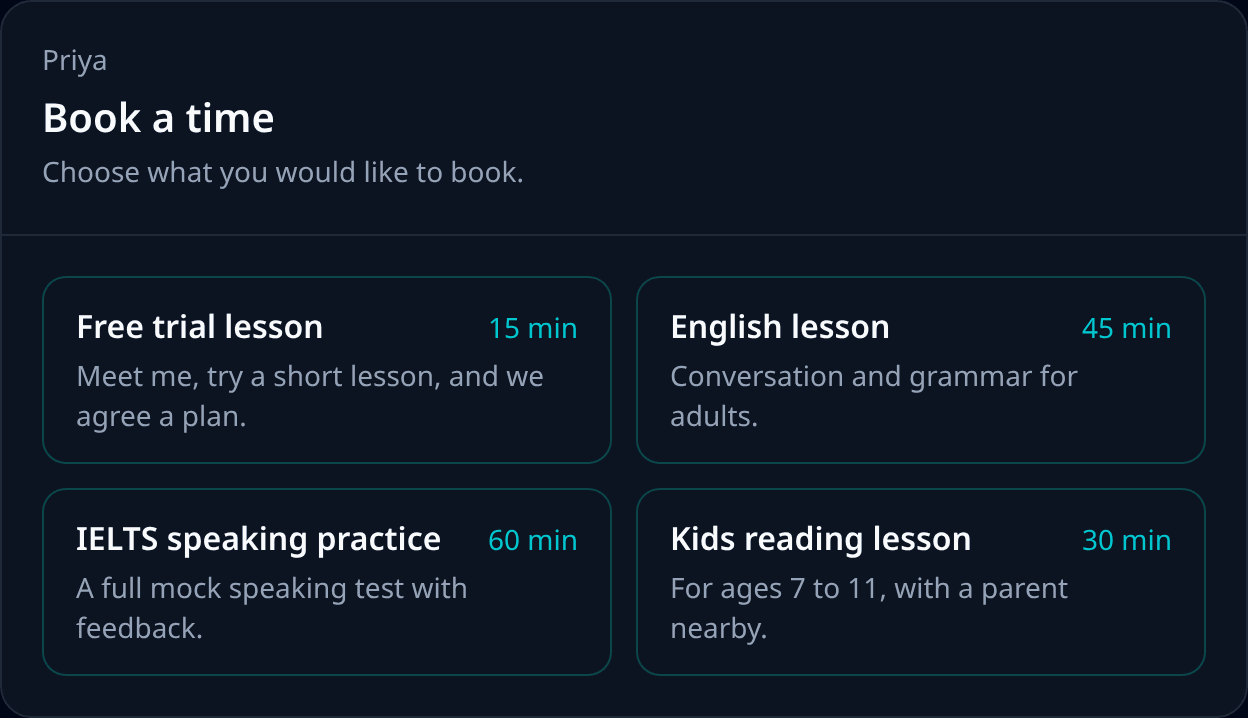
On a MeetETA booking page, a student picks a booking type, such as a free trial or a regular lesson, then sees open times in their own time zone with your local time under each slot. Each type can have its own length, hours, buffer, notice and meeting link. You can share your payment link automatically, for all lessons or per type, and it appears on the confirmation page, in the confirmation email and in the 24-hour reminder. Students can reschedule or cancel from the link in their email, and you can place the booking calendar on your own website. Booking is a paid feature; the free time link shows your hours and time zone without taking bookings.
Start with a free time link
A free MeetETA link shows students your time zone and teaching hours in their own zone. When you want them to book lessons themselves, MeetETA Pro adds the booking page for $5.99 a month, or $79 once until the January launch, when it becomes $99.
Create a free time link